
1. Configure Drive SDK API
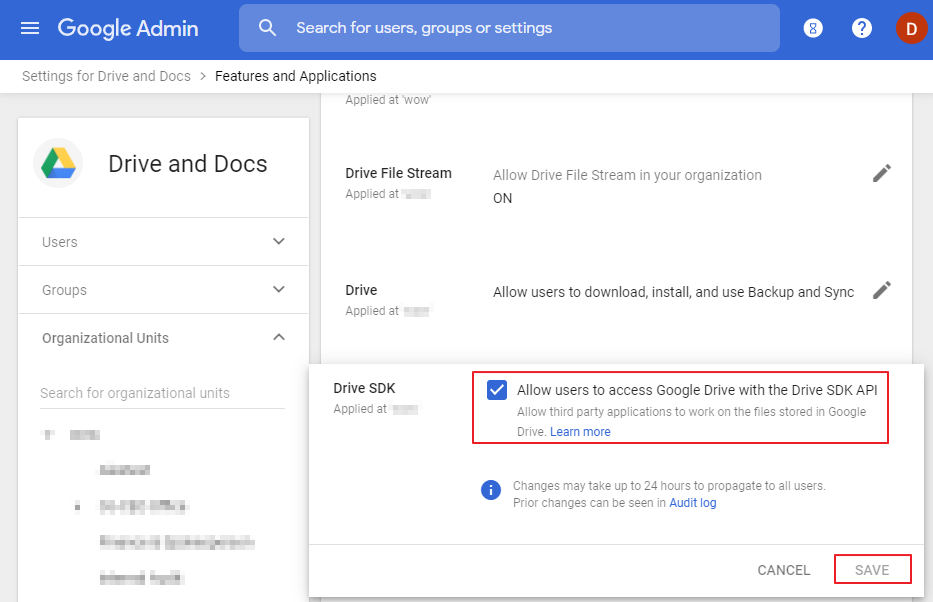
- Sign in to Google Admin console with the credentials of the domain you wish to back up.
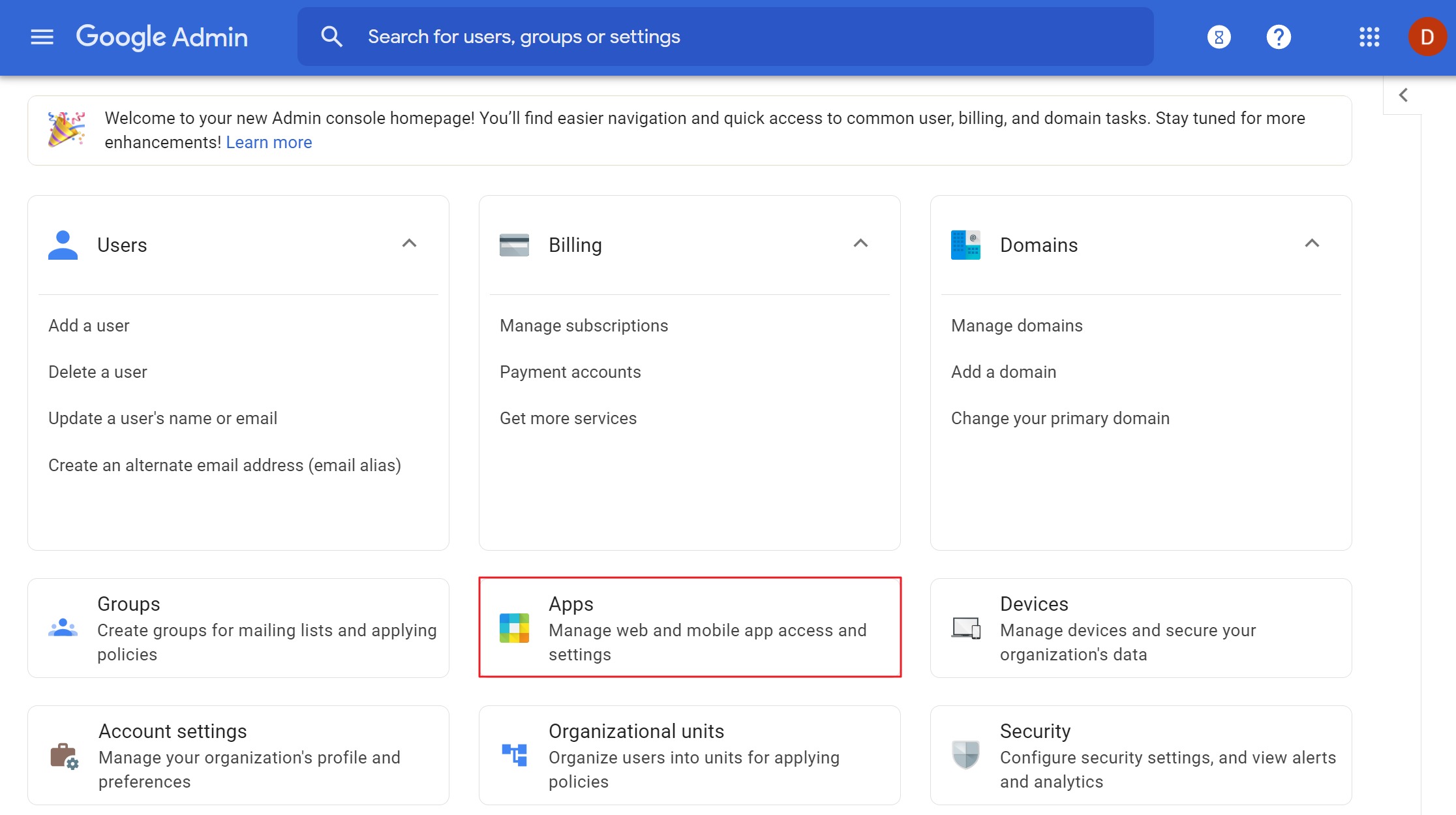
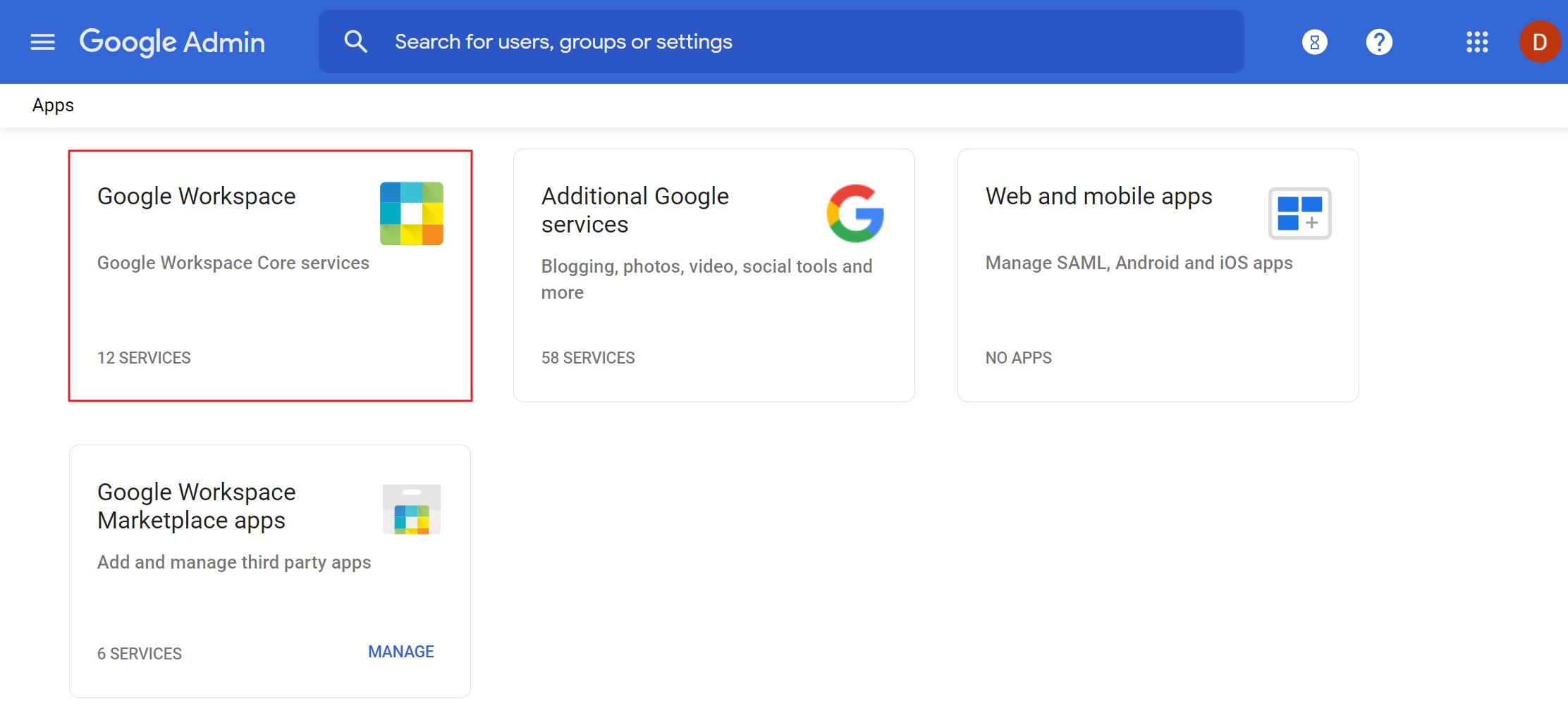
- Go to Apps > Google Workspace.
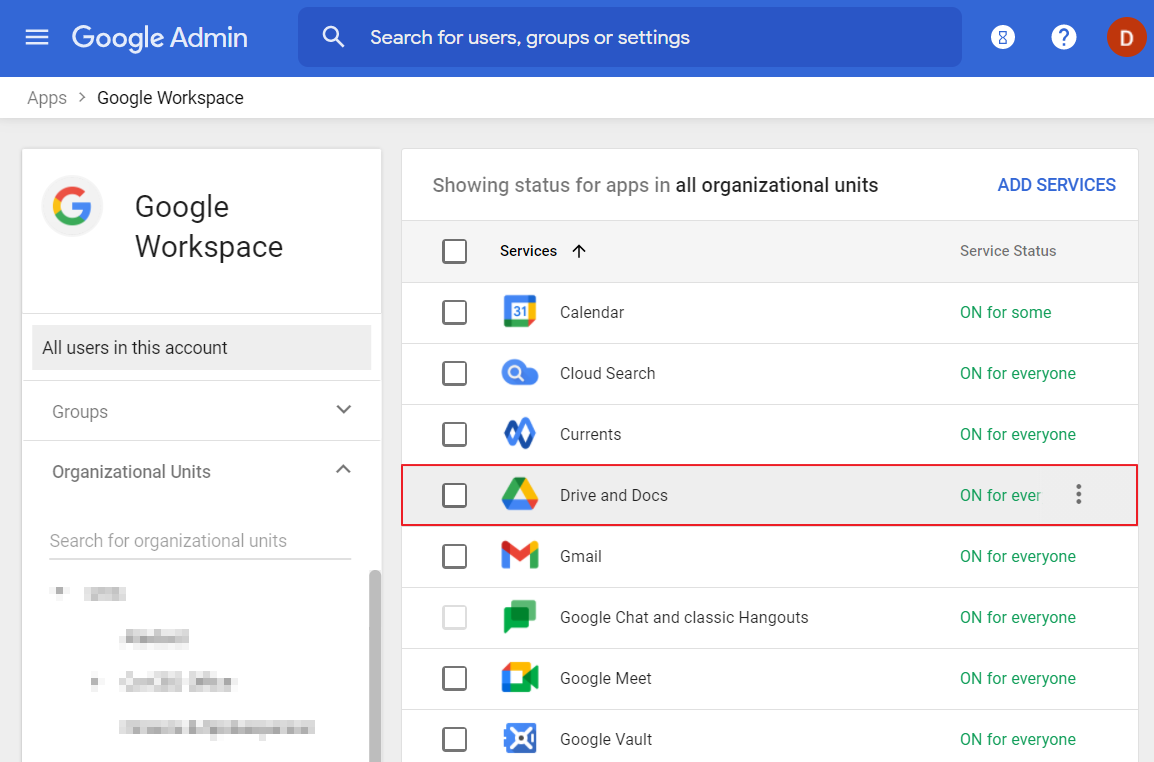
- Click Drive and Docs.
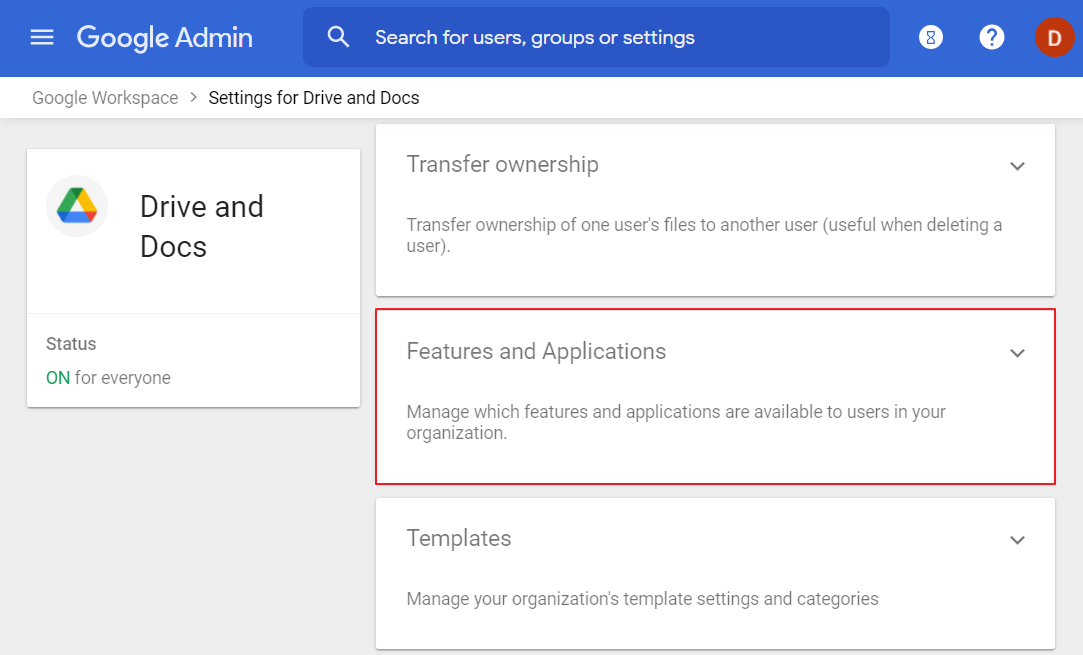
- Click Features and Applications.
- Click on the Drive SDK section and tick Allow users to access Google Drive with the Drive SDK API. Click SAVE.
2. Create a service key
- Sign in to Google Developers Console as a domain super administrator.
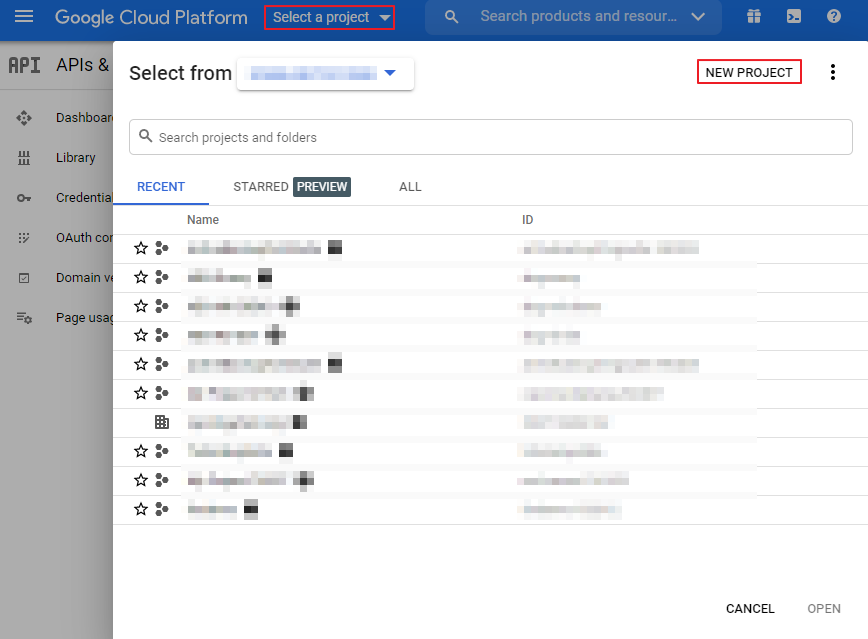
- Click Select a project and hit NEW PROJECT in the upper-right corner of the pop-up window.1
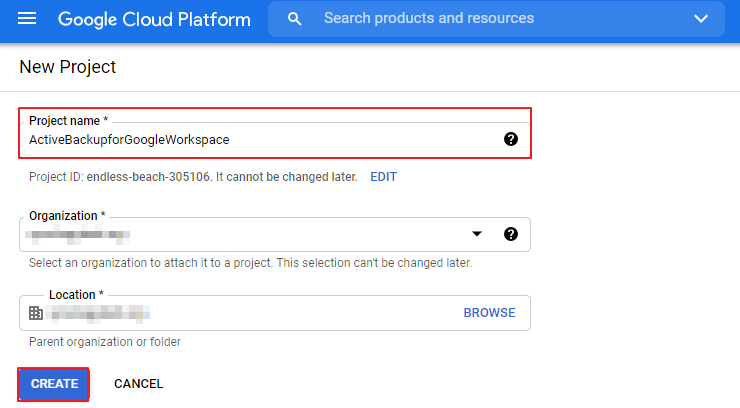
- Enter a project name and click CREATE.
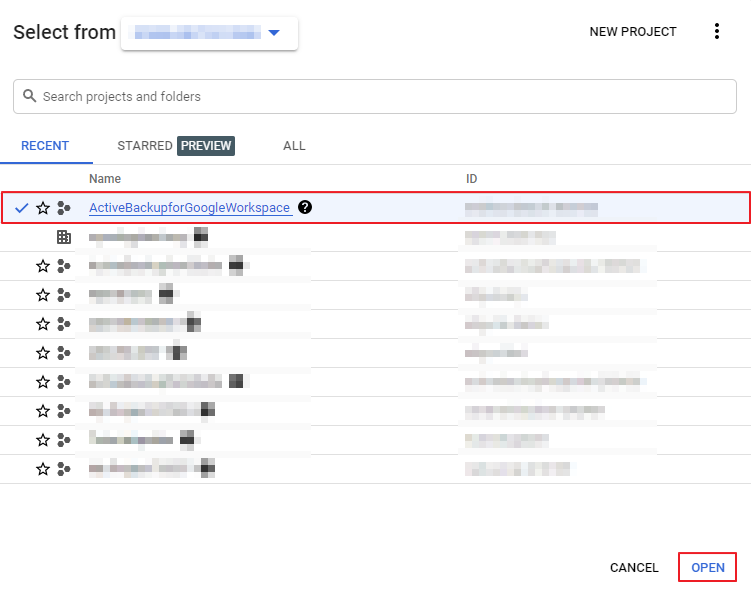
- Open the project you just created.
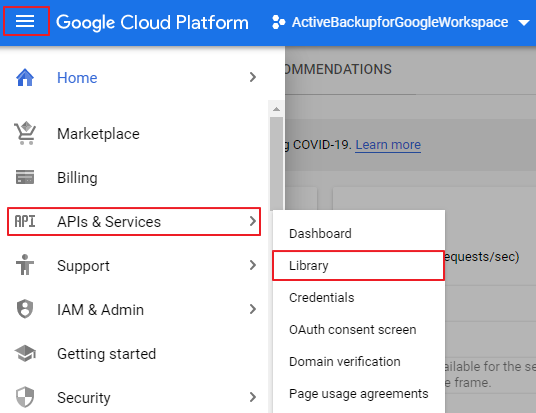
- Click Navigation menu and go to APIs & Services > Library.
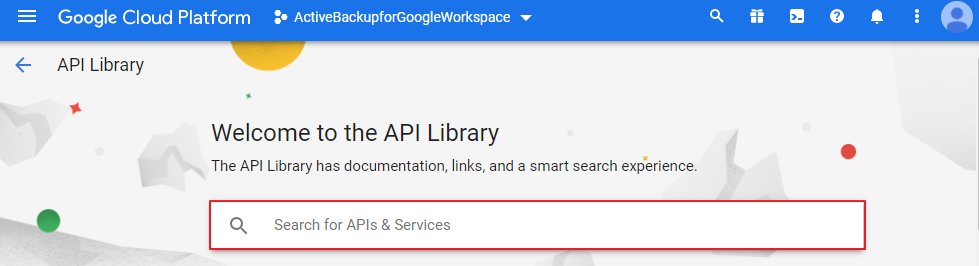
- Search for the following APIs and enable them one by one: Admin SDK API, Google People API, Gmail API, Google Calendar API, and Google Drive API.
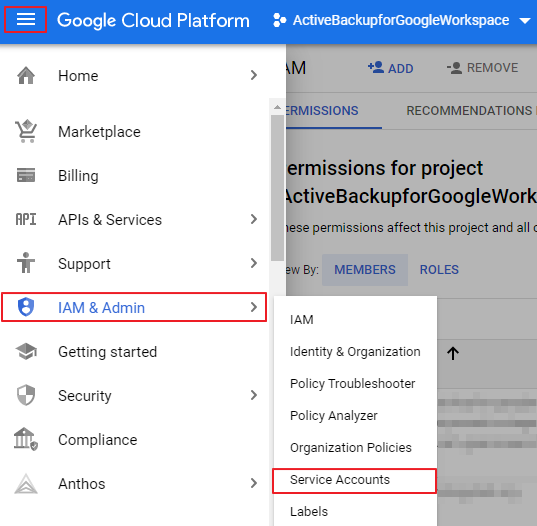
- Click Navigation menu and go to IAM & Admin > Service Accounts.
- Click + CREATE SERVICE ACCOUNT.
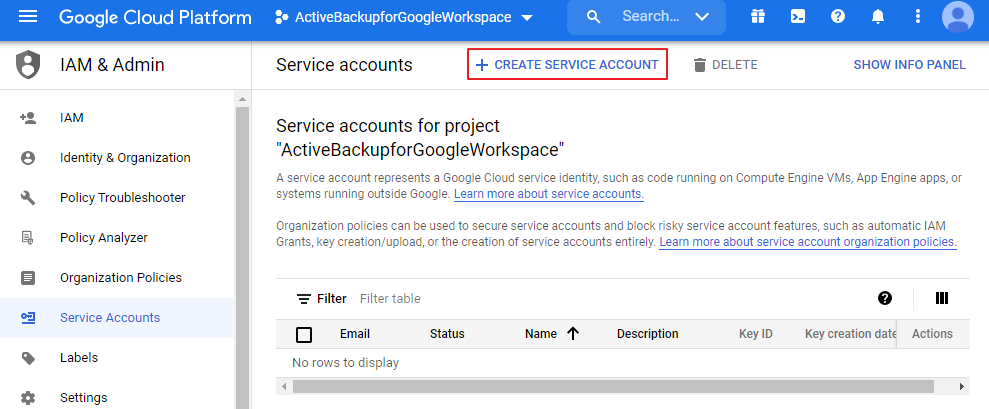
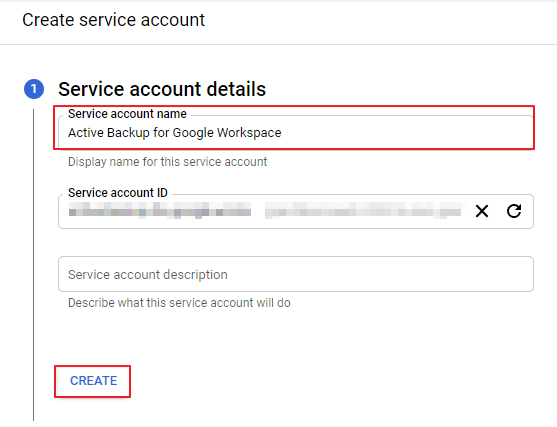
- Enter a Service account name as you please and click CREATE.
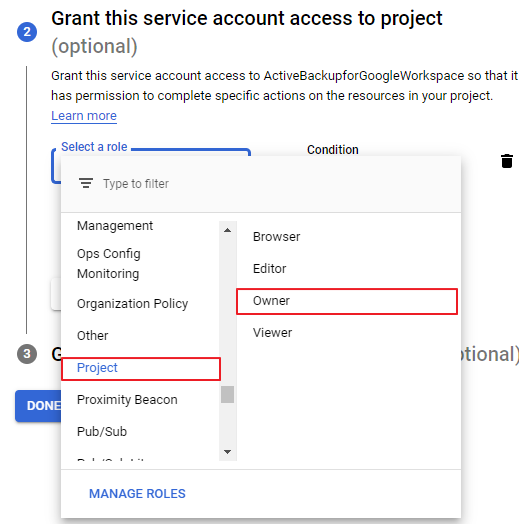
- Select Project > Owner as the role and click CONTINUE.
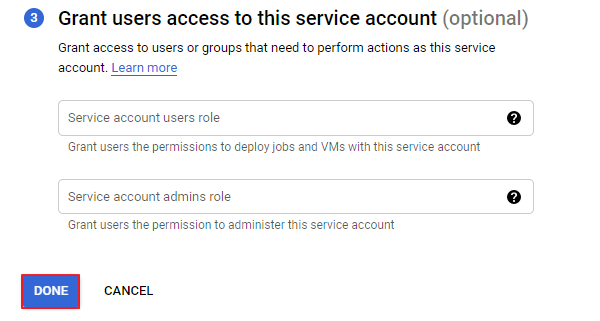
- Omit the optional fields and click DONE.
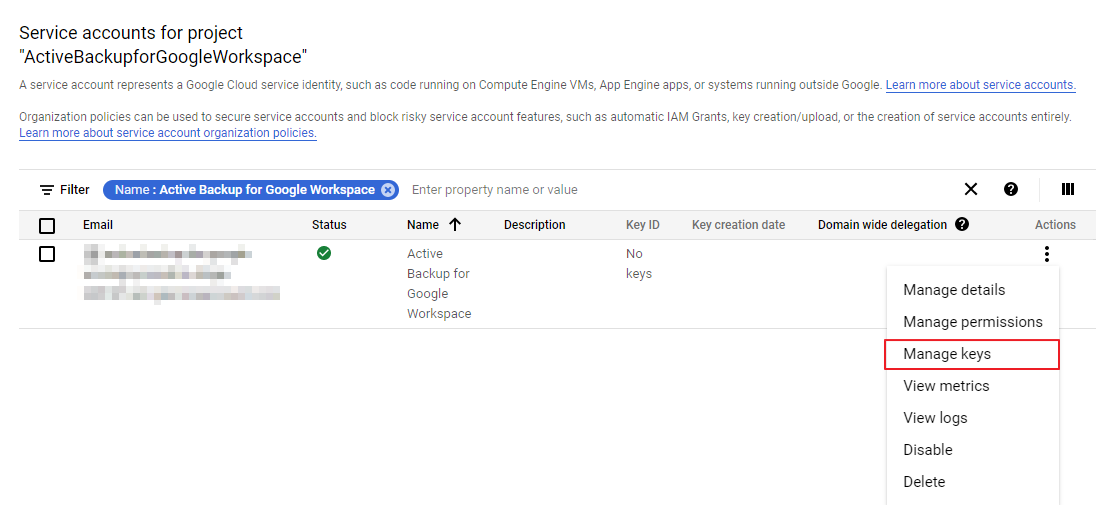
- You will automatically jump to the page listing service accounts. Find the newly created account. Click
 under Actions and select Manage keys.
 If you see the window below, click the "disable" link as shown in the screenshot or go to Navigation Menu > Organization Policies and find Disable service account key creation. Set the policy to Inactive. Once completed, return to the Service Accounts tab.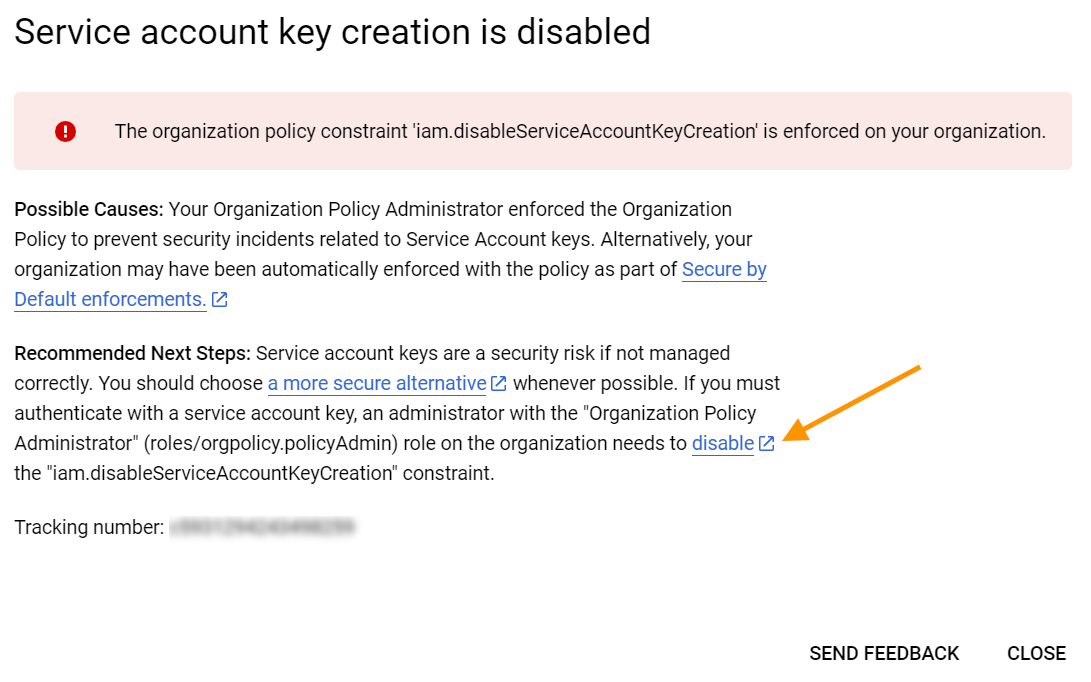
- Click ADD KEY > Create new key.
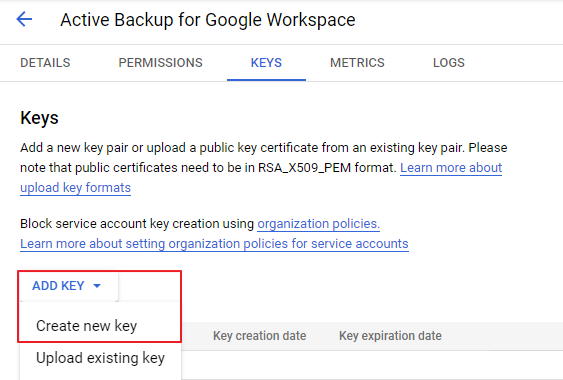
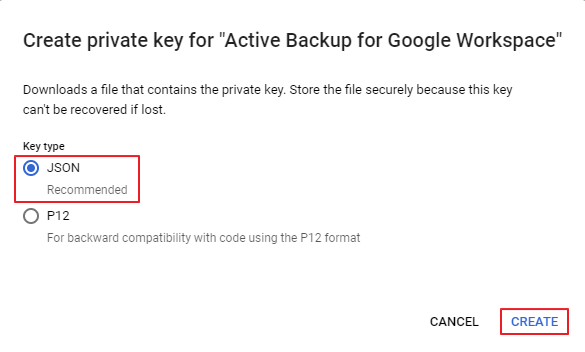
- In the pop-up window, choose JSON as the key type and click CREATE.
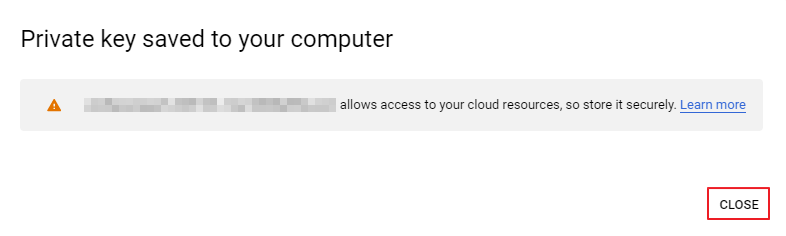
- The key will be automatically saved to your computer. Click CLOSE.2
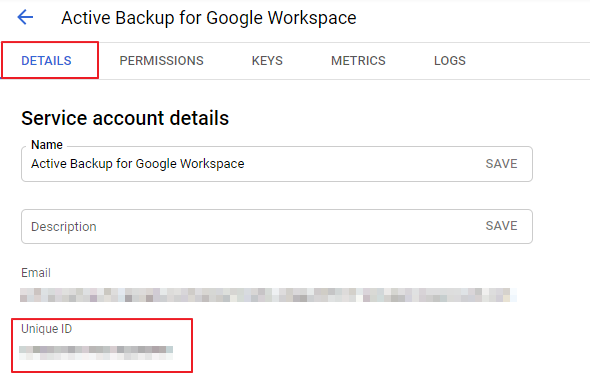
- Go to DETAILS and copy the Unique ID to your Notepad.3
- Sign in to Google Admin console with the credentials of the domain you wish to back up.
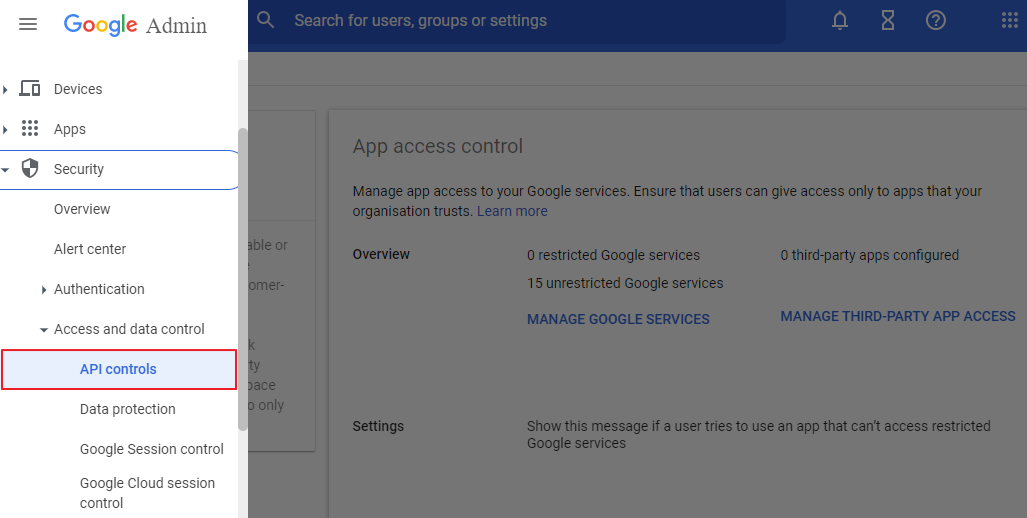
- Go to Security > Access and data control > API controls.
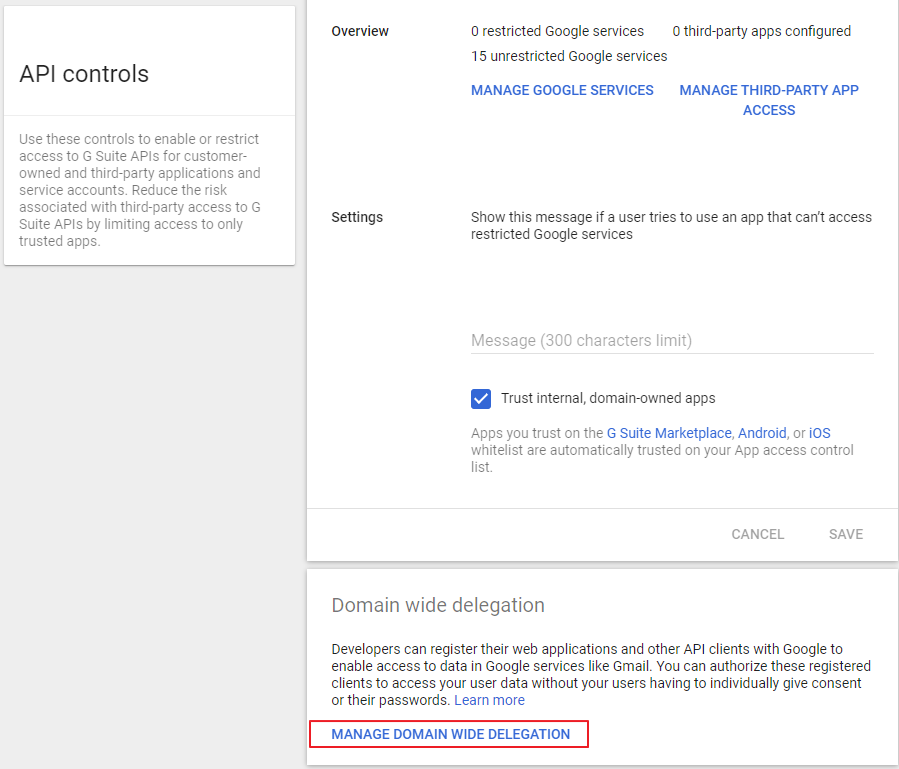
- Click MANAGE DOMAIN WIDE DELEGATION at the bottom of the page.
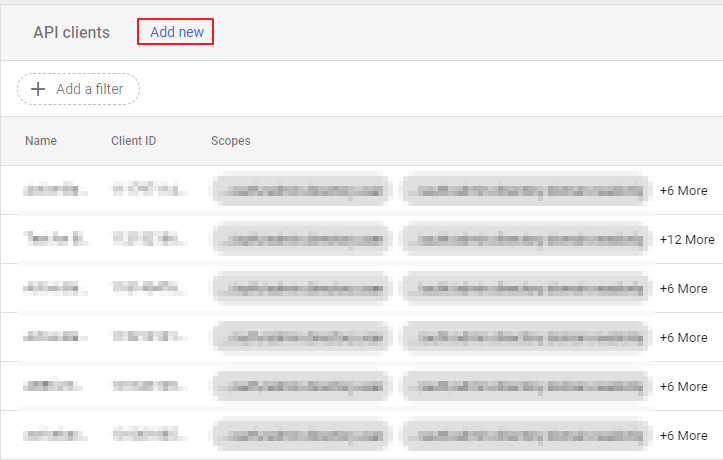
- Click Add new.
- In the pop-up window, enter the following information and click AUTHORIZE:
- Client ID: Paste the unique ID that you copied in step 16.
- OAuth scopes: Copy and paste the following:
https://www.googleapis.com/auth/admin.directory.user, https://www.googleapis.com/auth/admin.directory.domain.readonly, https://www.googleapis.com/auth/drive, https://mail.google.com, https://www.googleapis.com/auth/calendar, https://www.googleapis.com/auth/contacts, https://www.googleapis.com/auth/contacts.other.readonly, https://sites.google.com/feeds, https://www.googleapis.com/auth/tasks 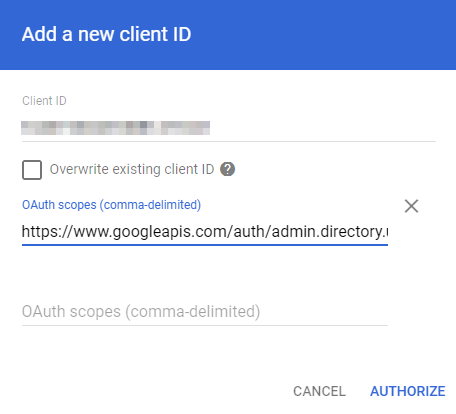
- Now you can use the locally-stored key (generated in step 14) to create a task in Active Backup for Google Workspace. This article will guide you through the steps.
Notes:
- It is suggested that you create a project specifically dedicated to Active Backup for Google Workspace to ensure privacy.
- The key exported here will be the service key for your backup domain. It contains a private key that grants access to all users in your domain. Please make a copy and store it in a safe place.
- The unique ID will be used to delegate domain-wide authority to your service account.
Was this article helpful?
That’s Great!
Thank you for your feedback
Sorry! We couldn't be helpful
Thank you for your feedback
Feedback sent
We appreciate your effort and will try to fix the article