
What is Active Backup for Google Workspace?
Active Backup for Google Workspace is designed to back up the data stored in your Google Workspace account to your Synology NAS. This backup package includes a centralized monitoring interface that allows IT administrators to keep track of all accounts' backup status and historical transmissions in one place. End users can restore and download backup data without the help of IT professionals using Active Backup for Google Workspace Portal.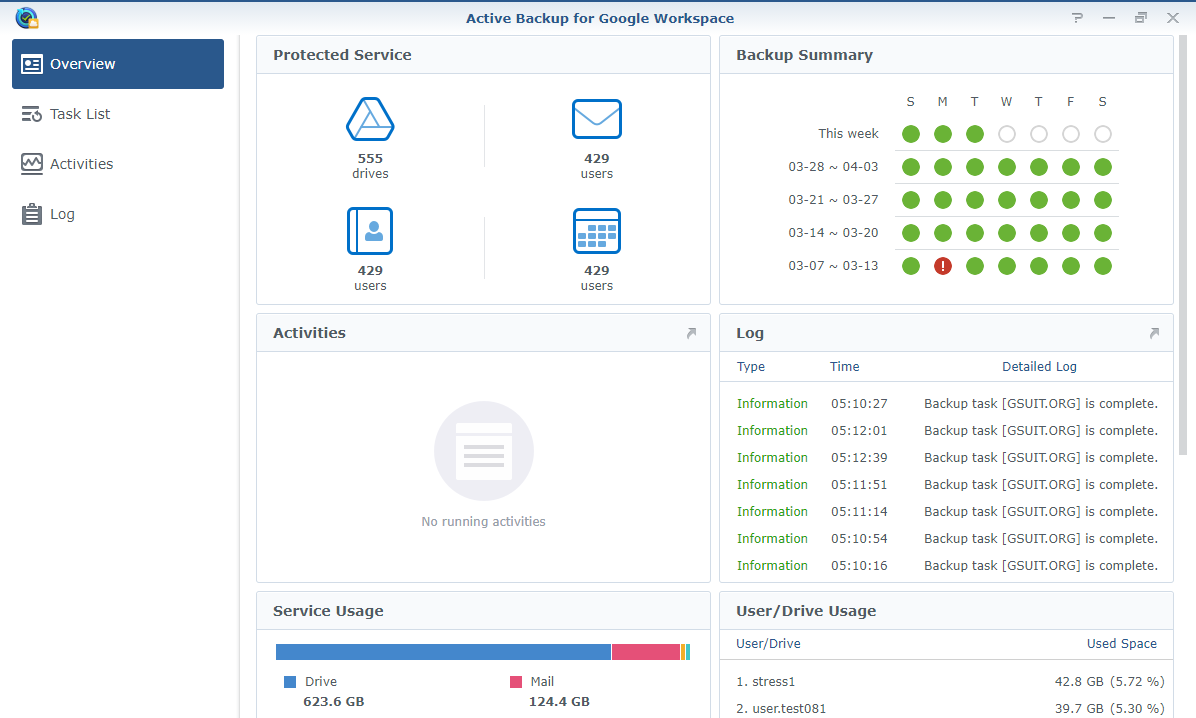
Why use Active Backup for Google Workspace?
- Back up your Google Workspace My Drive and Shared drives, Gmail, Contacts, and Calendar.
- Since Active Backup for Google Workspace is a free add-on for Synology NAS, you can back up unlimited accounts, as long as your storage allows it.
- With Active Backup for Google Workspace Portal, both users and admins can easily locate items for restoration and restore or export them with just a few clicks.
- You can continuously back up user services and Shared drives, helping to minimize the risk of data loss.
Before you start
- To install Active Backup for Google Workspace, your NAS must be running DSM 6.2 or above.
- Make sure that your NAS is compatible with Active Backup for Google Workspace. You can see if your NAS model is applicable by referring to this page.
- To view the Maximum number of concurrent users and the Maximum Server Performance for your Synology NAS, refer to your device’s Datasheet. To get your device’s Datasheet, go to the Download Center > select your NAS model > the Documents tab and click Download next to Datasheet.
Activate the package
To activate the package and latest updates offered by Active Backup for Google Workspace, you will need to register for a Synology Account and enter your credentials when activating the package.
A welcome page will appear for the purpose of package activation when Active Backup for Google Workspace is launched for the first time. Click the Activate button on the welcome page, agree to the terms and conditions, and then sign in using your Synology Account.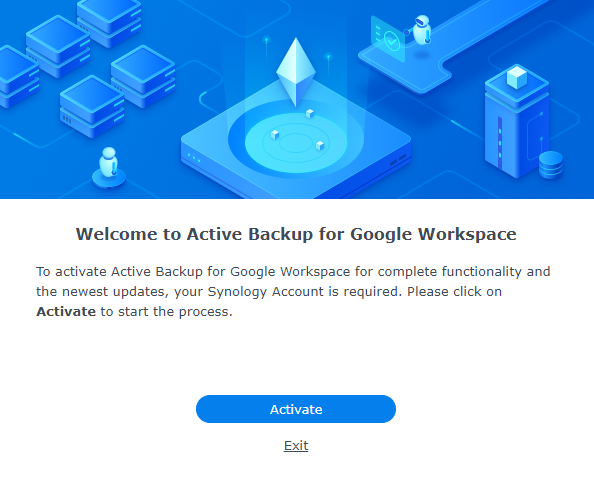
Create a backup task
Important: To create a backup task, you first need to follow the steps in this article to configure drive SDK API and create a Service Key.
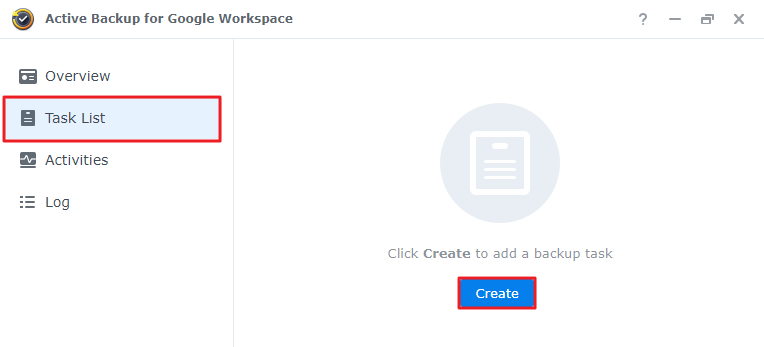
- Go to the Task List page and click Create to launch the Task Creation Wizard.
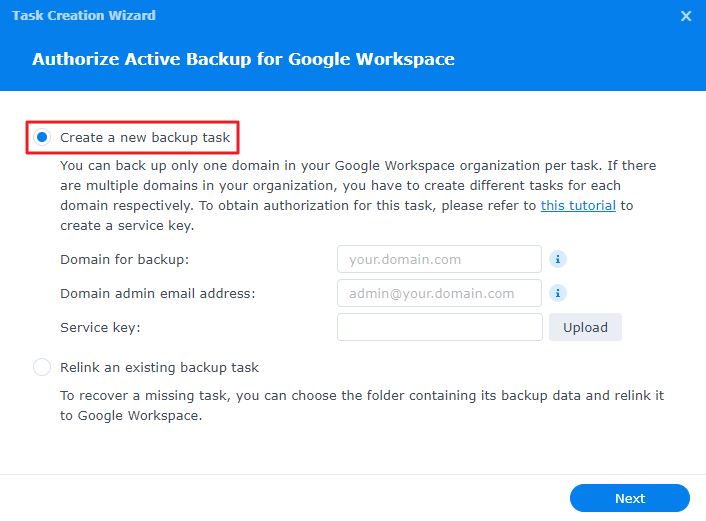
- Select Create a new backup task and enter the Domain for backup and the Domain admin email address. You also need to upload a Service key to authenticate the domain.
- Configure the Task name, Backup destination, Backup list, and enable the Active Backup for Google Workspace Portal as needed.
- Enable services for auto-discovery as needed. With this enabled, new drives added to the domain or the selected services of new domain users can be automatically included in the backup list.
- Set up backup and retention policies:
- Backup policy:
- Continuous backup: Based on the API request rate detected from the last backup, the system dynamically adjusts the backup intervals from one to ten minutes. Data are backed up continuously in an infinite cycle.
- Manual backup: Data are backed up immediately once you manually run the task.
- Scheduled backup: Data are backed up based on the schedule you set.
- File version retention policy:
- Preserve all versions
- Number of days for historical file versions to be preserved: When a backed-up file is updated to a new version, the previous version will be preserved for the retention period you set.
- Backup policy:
- Check the task summary and click Done to finish the task creation.
- For more details, refer to the respective help articles for DSM 7.0 and DSM 6.2.
Notes:
- Active Backup for Google Workspace supports the backup of multiple domains. However, the Domain for backup must be either a primary or a secondary domain. Domain aliases are not supported.
- For the Domain admin email address field, the administrator's role has to be Super Admin, Groups Admin, User Management Admin, or Help Desk Admin. If the role is one of the last two types, please make sure that the administrator account is a member of the organization.
- The services and users that can be backed up in the task are based on both the entered domain and the administrator's privileges.
Manage backup tasks
On the Task List page, you will see a list of all the backup tasks. You can manage them using the upper toolbar.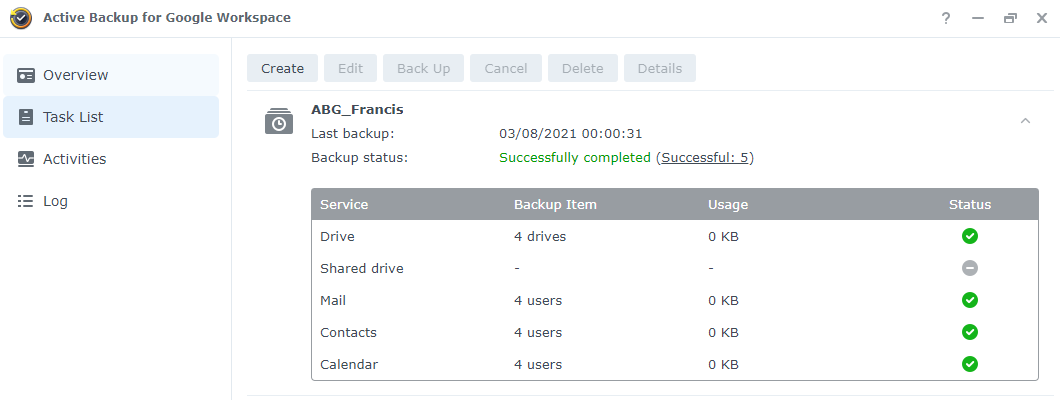
Select a backup task and click Edit to do any of the following:
- Enable the self-service portal
- Edit your backup target
- Turn on auto-discovery for each service
- Adjust the backup and retention policy
If you want to delete any of the user or shared drive backup data, select a backup task, click Details, select the user or shared drive backup data you want to delete, and click Storage Management. There, you can delete the backup data of the related service.
Log
The Log page allows you to keep track of the backup tasks that have been performed, as well as view error messages and track restoration activities started by end-users. You can view all logs or use filters to search for the logs of certain tasks.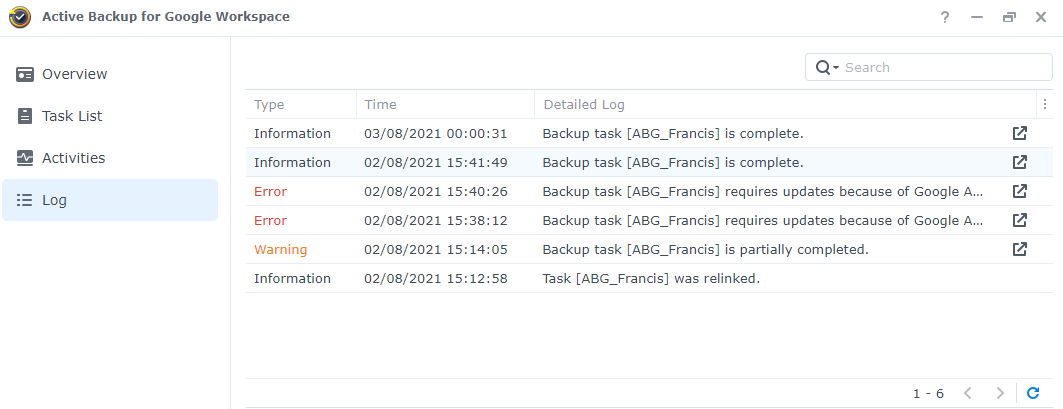
To search through log records with a filter, on the Log page, click the magnifying glass icon in the search bar in the upper-right corner. There, you can filter your search by Keyword, Type, or Date.
You can also view log details by selecting a log and clicking on the arrow icon on the right-hand side. For backup activity, you can view the Status and Log, and for a restoration activity, you can view the Restore Information and Log.
For more details on logs in Active Backup for Google Workspace, refer to the respective help articles for DSM 7.0 and DSM 6.2.
Restore using the Active Backup for Google Workspace Portal
Enable and access the Active Backup for Google Workspace Portal
To enable Active Backup for Google Workspace Portal:
- Users with admin privileges can go to Control Panel > Login Portal > Applications > Active Backup for Google Workspace Portal. Click Edit to enable and customize the login portal.
To access Active Backup for Google Workspace Portal:
- For users with admin privileges: Go to Control Panel > Login Portal > Applications > Active Backup for Google Workspace Portal and click the link in the Alias field.
- For users with or without admin privileges: Click Active Backup for Google Workspace Portal on the DSM main menu.
Browse Data for Restoration
To find your information, you will need to first specify the View Role, Task, Service, and the Date of the data you want to view.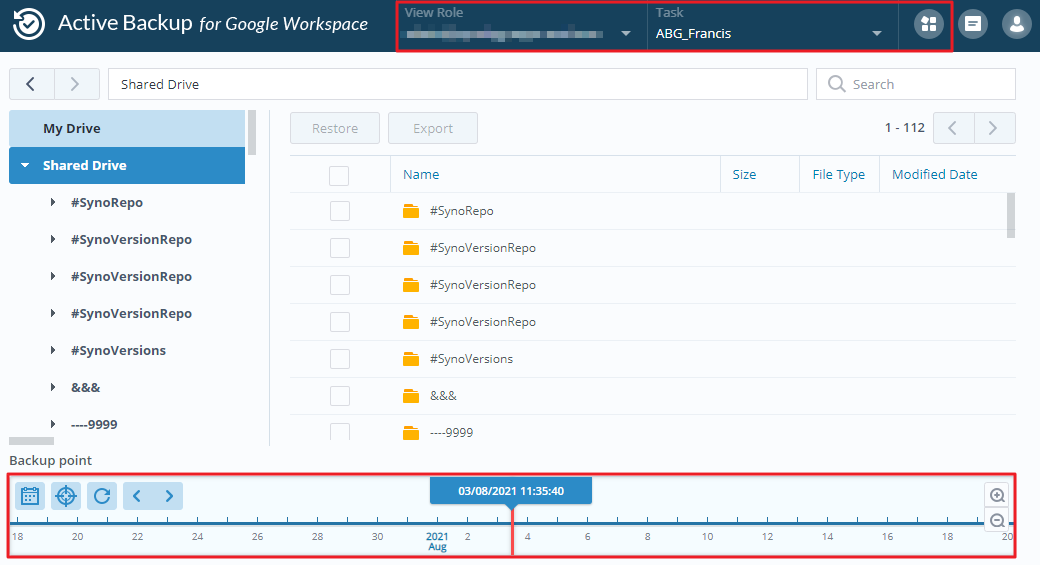
Change the view role
Select an account from the View Role drop-down menu. As an administrator, you can switch to any backup user's view to browse and restore their data.
Select a task
Select the task you wish to restore from the Task drop-down menu.
Select a service type
Active Backup for Google Workspace supports the backup of drives, emails, Contacts, and Calendars. Click on the Services icon and select the service you wish to restore.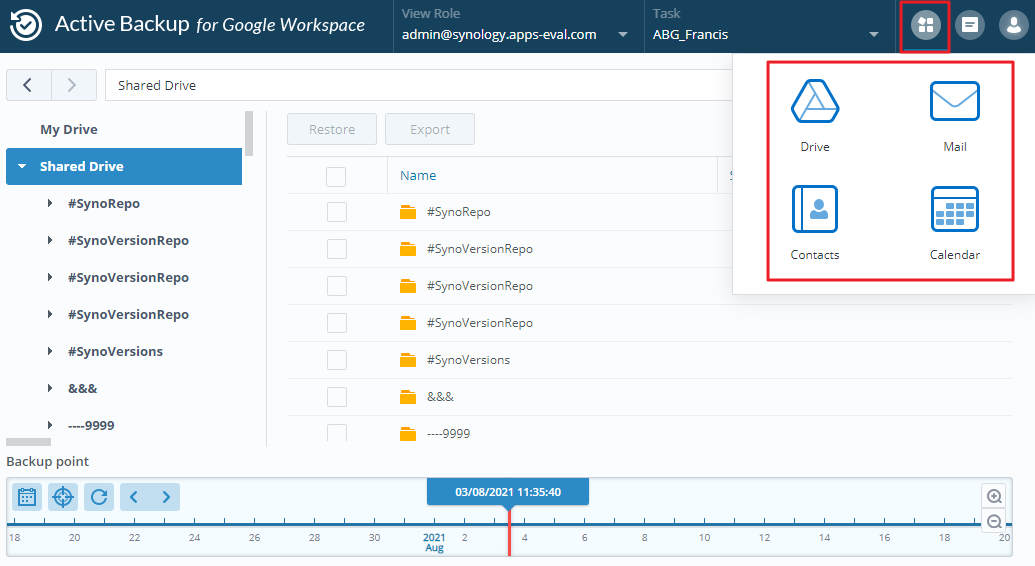
View data at any previous point in time
- Go to the timeline at the bottom of the page.
- To switch between backup versions, perform either of the following actions:
- Click the Calendar icon in the upper-left corner and select the date you wish to restore the backup version from.
- Click the right or left arrow to switch between versions.
- Drag the timeline to view any backup at a previous point in time.
Restore and Export your data
You can restore your Service data (listed below) to the original domain in Google Workspace and export the data to a local device. For detailed instructions on how to perform restores and exports for the following Service data, please refer to the respective help articles.
Was this article helpful?
That’s Great!
Thank you for your feedback
Sorry! We couldn't be helpful
Thank you for your feedback
Feedback sent
We appreciate your effort and will try to fix the article